
-- bss 段 : .bss 表示 bss 段, * 表示所有文件, *(.bss) 表示所有文件的 bss 段;
SECTIONS{
	.text :
	{
	*(.text)
	}

	.data :
	{
	*(.data)
	}

	.bss :
	{
	*(.bss)
	}
}
2. 设置起始链接器地址
设置链接器起始地址 :
-- 语法 : '. = 地址';
-- lds 脚本示例 :
SECTIONS{
	. =0x0;

	.text :
	{
	*(.text)
	}

	.data :
	{
	*(.data)
	}

	.bss :
	{
	*(.bss)
	}
}
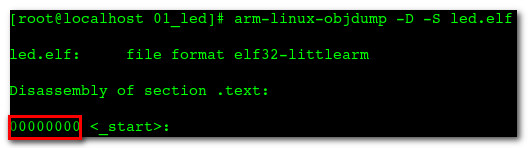
-- 反编译编译后的 elf 文件 : '00000000 <_start>:' 表示从 0 地址开始;
[root@localhost 01_led]# arm-linux-objdump -D -S led.elf

led.elf:     file format elf32-littlearm

Disassembly of section .text:

00000000 <_start>:
.text
.globl _start
#define VIC0_INT	0x71200000
#define VIC1_INT	0x71300000
-- 修改首地址后的脚本 : 将起始地址修改为 0x30008000;
SECTIONS{
	. =0x30008000;

	.text :
	{
	*(.text)
	}

	.data :
	{
	*(.data)
	}

	.bss :
	{
	*(.bss)
	}
}
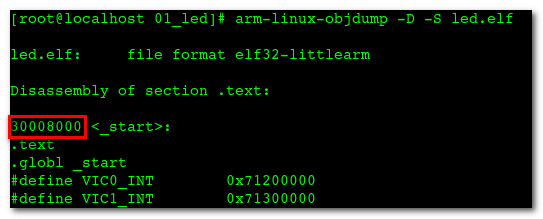
-- 反编译elf : 执行 arm-linux-objdump -D -S led.elf 命令, '30008000 <_start>:' 起始地址是 0x30008000;
[root@localhost 01_led]# arm-linux-objdump -D -S led.elf

led.elf:     file format elf32-littlearm

Disassembly of section .text:

30008000 <_start>:
.text
.globl _start
#define VIC0_INT	0x71200000
#define VIC1_INT	0x71300000 ... ...
地址对比 :
-- 链接器起始地址 0x000000 :
-- 链接器起始地址 0x30008000 :
3. 对齐设置
对齐范例 : . = ALIGN(4); 表示从当前开始 4 字节对齐;
SECTIONS{
	. =0x30008000;
	. = ALIGN(4);
	.text :
	{
	*(.text)
	}

	. = ALIGN(4);
	.data :
	{
	*(.data)
	}

	. = ALIGN(4);
	.bss :
	{
	*(.bss)
	}
}
4. 变量
变量示例 : 变量保存之后, 可以再程序中用到变量;
-- 示例 :
SECTIONS{
	. =0x30008000;
	. = ALIGN(4);
	.text :
	{
	*(.text)
	}

	. = ALIGN(4);
	.data :
	{
	*(.data)
	}

	. = ALIGN(4);
	bss_start = . ;
	.bss :
	{
	*(.bss)
	}
	bss_end = . ;
}
5. 设置代码段首文件
设置首文件 :
-- 语法 : start.o(.text);
-- 示例 :
SECTIONS{
	. =0x30008000;
	. = ALIGN(4);
	.text :
	{
	start.o(.text)
	*(.text)
	}

	. = ALIGN(4);
	.data :
	{
	*(.data)
	}

	. = ALIGN(4);
	bss_start = . ;
	.bss :
	{
	*(.bss)
	}
	bss_end = . ;
}
五. eclipse 在线调试
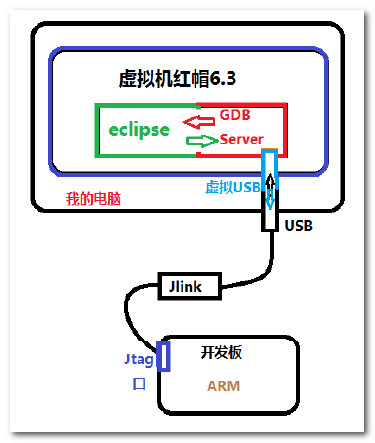
1. eclipse 集成开发环境示意图
eclipse 集成开发环境示意图 :
-- 硬件 : 开发板, JLink;
-- 软件 : eclipse, GDB Server, JLink 软件;
2. 准备工作
(1) 格式化 nand flash
格式化 nand flash : 注意必须格式化 NandFlash 否则会出现不可预知错误;
(2) 硬件连接
硬件连接 : JLink 连接, 串口连接, 电源连接, 开发板 nand flash 启动;
(3) 安装 JLink Windows 驱动
JLink Windows 驱动安装 : 买 JLink 时会带着这个安装盘, 安装 JLink Windows 驱动 才可以调试成功, 否则会在 Windows 这一关被挡下 导致连接不成功;
(3) 安装 gdb server
安装 arm-linux-gdb-7.5.tar.gz :
-- 解压 : tar -xvzf arm-linux-gdb-7.5.tar.gz 命令;

-- 查看 build-all 脚本 : 可以看到脚本执行流程是 解压 gdb-7.5.tar.gz, 然后生成 Makefile文件, 之后进编译安装到 /opt/arm-linux-gdb 目录下;
[root@localhost arm-linux-gdb-7.5]# cat build-all
#/bin/sh

rm -fr gdb-7.5
rm -r /opt/arm-linux-gdb/

tar xvzf gdb-7.5.tar.gz
cd gdb-7.5

./configure --target=arm-linux --prefix=/opt/arm-linux-gdb/ -v

make && make install

cd /opt/arm-linux-gdb/
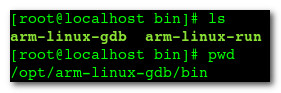
-- 进入 ddb 安装目录, 查看路径 :
-- 配置环境变量 : 将 /etc/profile 中的环境变量删除, 只在 ~/.bashrc 中配置;
export PATH=$PATH:/opt/arm-linux-gdb/bin/
export PATH=$PATH:/usr/local/arm/4.3.2/bin/
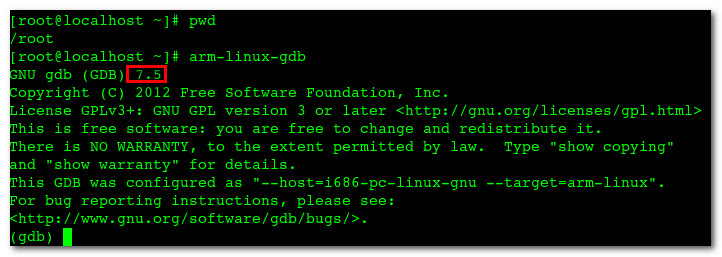
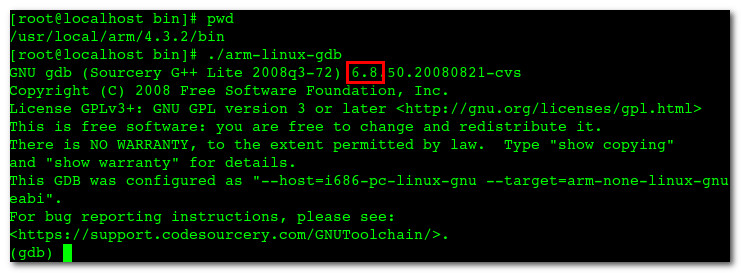
-- 环境变量顺序 : 注意前面的环境变量覆盖后面的, 交叉工具链中也有 arm-linu-gdb, 但是 /opt 下面的先配置, 因此事这个先生效;
-- 默认的 arm-linu-gdb : 是 7.5 版本的;
-- 交叉工具链中的 gdb : 6.8版本的, 无法进行 在线调试;
(4) 安装 JLink
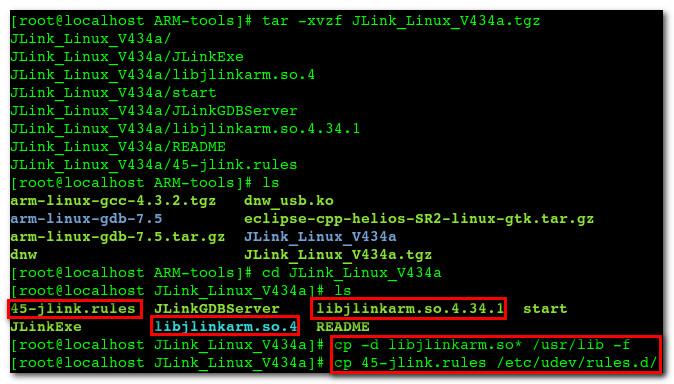
安装流程 :
-- 解压文件 : JLink_Linux_V434a.tgz;
-- 进入cd JLink_Linux_V434a 目录, 拷贝文件 : 拷贝 libjlinkarm.so.4 和 libjlinkarm.so.4.34.1 到 /usr/lib 目录下 命令 cp -d libjlinkarm.so* /usr/lib -f, 拷贝 45-jlink.rules 到 /etc/udev/rules.d/ 下 命令 cp 45-jlink.rules /etc/udev/rules.d/;
[root@localhost ARM-tools]# tar -xvzf JLink_Linux_V434a.tgz
JLink_Linux_V434a/
JLink_Linux_V434a/JLinkExe
JLink_Linux_V434a/libjlinkarm.so.4
JLink_Linux_V434a/start
JLink_Linux_V434a/JLinkGDBServer
JLink_Linux_V434a/libjlinkarm.so.4.34.1
JLink_Linux_V434a/README
JLink_Linux_V434a/45-jlink.rules
[root@localhost ARM-tools]# ls
arm-linux-gcc-4.3.2.tgz   dnw_usb.ko
arm-linux-gdb-7.5         eclipse-cpp-helios-SR2-linux-gtk.tar.gz
arm-linux-gdb-7.5.tar.gz  JLink_Linux_V434a
dnw                       JLink_Linux_V434a.tgz
[root@localhost ARM-tools]# cd JLink_Linux_V434a
[root@localhost JLink_Linux_V434a]# ls
45-jlink.rules  JLinkGDBServer    libjlinkarm.so.4.34.1  start
JLinkExe        libjlinkarm.so.4  README
[root@localhost JLink_Linux_V434a]# cp -d libjlinkarm.so* /usr/lib -f
[root@localhost JLink_Linux_V434a]# cp 45-jlink.rules /etc/udev/rules.d/
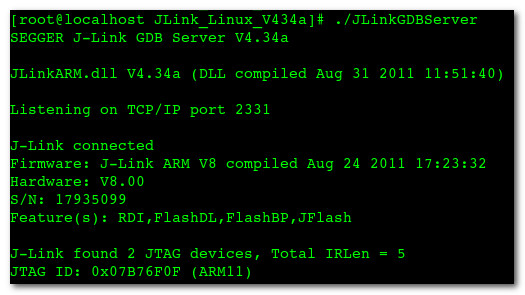
执行 JLinkGDBServer :
[root@localhost JLink_Linux_V434a]# ./JLinkGDBServer
SEGGER J-Link GDB Server V4.34a

JLinkARM.dll V4.34a (DLL compiled Aug 31 2011 11:51:40)

Listening on TCP/IP port 2331

J-Link connected
Firmware: J-Link ARM V8 compiled Aug 24 2011 17:23:32
Hardware: V8.00
S/N: 17935099
Feature(s): RDI,FlashDL,FlashBP,JFlash

J-Link found 2 JTAG devices, Total IRLen = 5
JTAG ID: 0x07B76F0F (ARM11)
(5) 安装 eclipse
安装流程 :
-- 取消 默认 eclipse : 红帽6.3中默认安装了eclipse, 进入 /usr/bin 目录, 将 eclipse 快捷方式改为 eclipse.bak, 如果需要使用这个 eclipse, 执行 eclipse.bak即可;
[root@localhost ~]# cd /usr/bin/
[root@localhost bin]# mv eclipse eclipse.bak
-- 开始启动时会出错 : 不用管, 在此启动 eclipse 就会启动成功;
[root@localhost eclipse]# ./eclipse
#
# A fatal error has been detected by the Java Runtime Environment:
#
# SIGSEGV (0xb) at pc=0x00b8f8c1, pid=11165, tid=3077863104
#
# JRE version: 6.0_24-b24
# Java VM: OpenJDK Client VM (20.0-b12 mixed mode linux-x86 )
# Derivative: IcedTea6 1.11.1
# Distribution: Red Hat Enterprise Linux Server release 6.2 (Santiago), package rhel-1.45.1.11.1.el6-i386
# Problematic frame:
# C [UTF-16.so+0x8c1] gconv+0x3c1
#
# An error report file with more information is saved as:
# /root/arm/ARM-tools/eclipse/hs_err_pid11165.log
#
# If you would like to submit a bug report, please include
# instructions how to reproduce the bug and visit:
# http://icedtea.classpath.org/bugzilla
# The crash happened outside the Java Virtual Machine in native code.
# See problematic frame for where to report the bug.
#
已放弃 (core dumped)
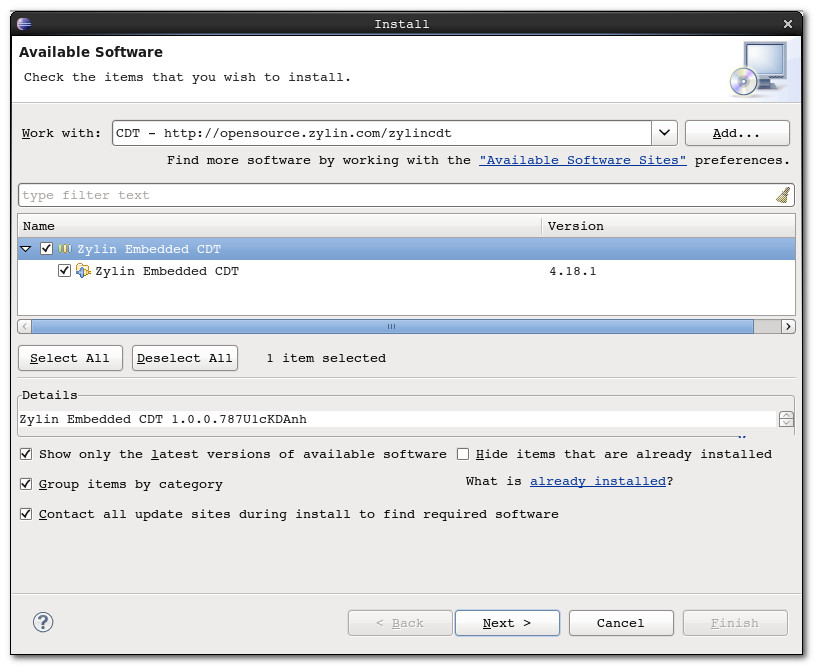
-- 安装 CDT 插件 : 地址 http://opensource.zylin.com/zylincdt , 注意 三个都选择;
(6) 工程配置
配置工程 :
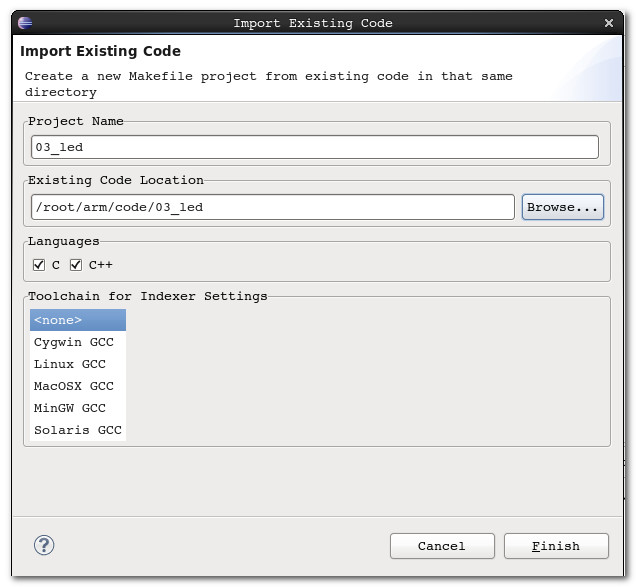
-- 导入工程 : 选择 菜单 'File' --> 'New' --> 'Makefile Project with Existing Code'
-- 取消自动编译 : 菜单 'Project' --> 'Build Automatically' 选项;
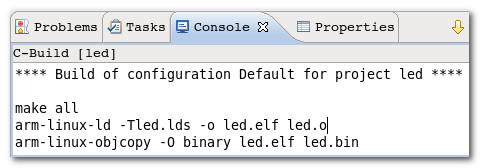
-- 清除编译文件 : 选择 'Project' --> 'Clean ...', 就会清除 .o .elf .bin 文件;
-- 编译文件 : 'Project' --> 'Build All' 选项, 同时 Console 中会有命令行输出;
(7) Debug配置
Debug 配置 :
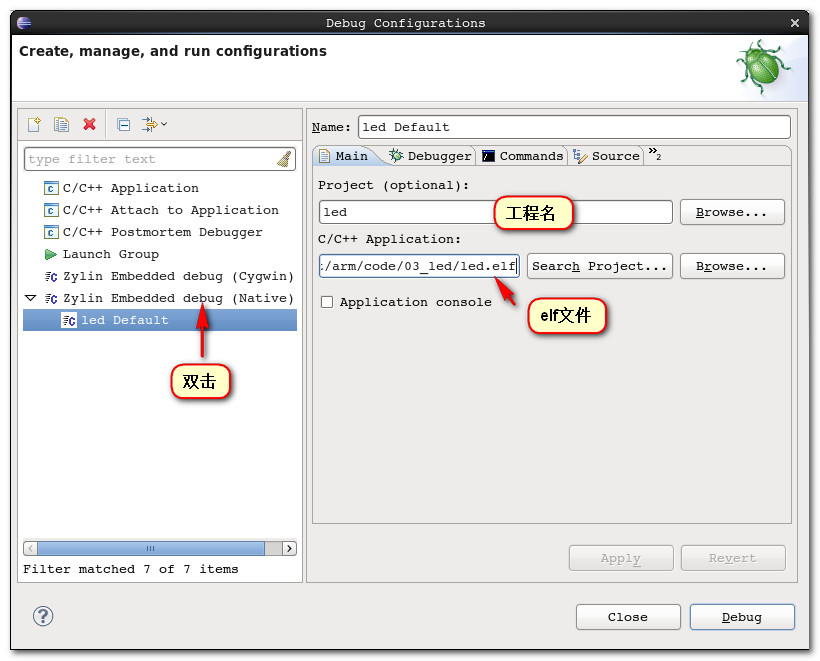
-- 设置Main 选项卡 : 双击 Zylin Embedded debug (Native), 创建 Degug, 设置工程名, 设置调试程序, 注意选择 elf 格式的文件;
-- 设置 Debugger 选项卡 : 取消 Stop on startup at : main 选项, GDB debugger 程序选择为 arm-linux-gdb;
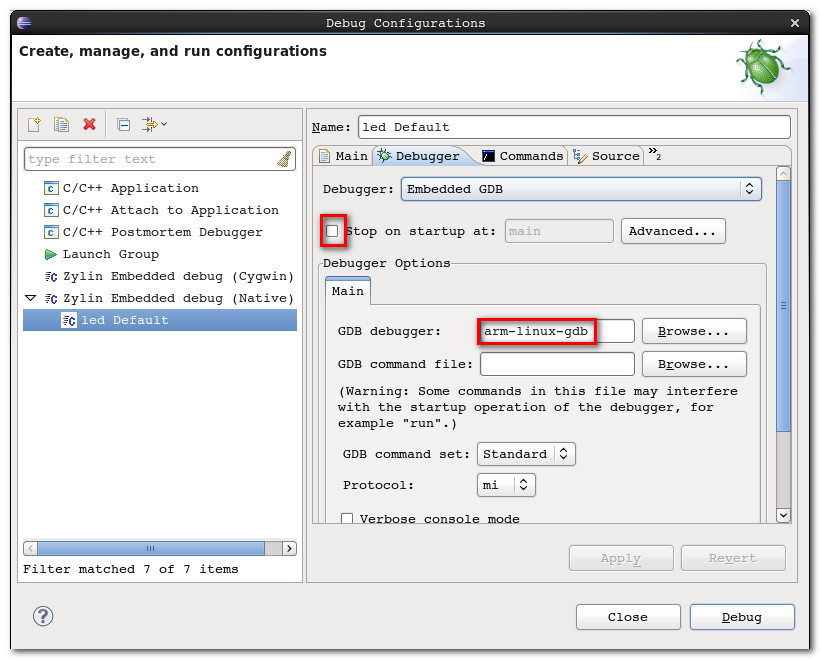
-- 设置初始化脚本 : 在 Commands 选项卡中设置 初始化脚本 , 注意下面的脚本是 ok6410 开发板的脚本, 其它开发板无法使用;
# tiny6410_config
# connect to the J-Link gdb server
target remote localhost:2331
# Set JTAG speed to 30 kHz
monitor endian little
monitor speed 30
# Reset the target
monitor reset
monitor sleep 10
#
# CPU core initialization (to be done by user)
#
# Set the processor mode
monitor reg cpsr = 0xd3
#config MMU
#flush v3/v4 cache
monitor cp15 7, 7, 0, 0 = 0x0
#/* flush v4 TLB */
monitor cp15 8, 7, 0, 0 = 0x0
#disable MMU stuff and caches
monitor cp15 1, 0, 0, 0 =0x1002
#Peri port setup
monitor cp15 15, 2, 0, 4 = 0x70000013
#disable watchdog
monitor MemU32 0x7e004000  =  0x00000000
monitor sleep 10
#disable interrupt
monitor MemU32 0x71200014  =  0x00000000
monitor MemU32 0x71300014  =  0x00000000
monitor MemU32 0x7120000C  =  0x00000000
monitor MemU32 0x7130000C  =  0x00000000
monitor MemU32 0x71200F00  =  0x00000000
monitor MemU32 0x71300F00  =  0x00000000
#set clock
monitor MemU32 0x7e00f900  =  0x0000801e
monitor MemU32 0x7e00f000  =  0x0000ffff
monitor MemU32 0x7e00f004  =  0x0000ffff
monitor MemU32 0x7e00f020  =  0x01043310
monitor MemU32 0x7e00f00C  =  0xc2150601
monitor MemU32 0x7e00f010  =  0xc2150601
monitor MemU32 0x7e00f024  =  0x00000003
monitor MemU32 0x7e00f014  =  0x00200102
monitor MemU32 0x7e00f018  =  0x00000000
monitor MemU32 0x7e00f01C  =  0x14000007
#config sdram
monitor MemU32 0x7e00f120  =  0x00000008
monitor MemU32 0x7e001004  =  0x00000004
monitor MemU32 0x7e001010  =  0x0000040f
monitor MemU32 0x7e001014  =  0x00000006
monitor MemU32 0x7e001018  =  0x00000001
monitor MemU32 0x7e00101c  =  0x00000002
monitor MemU32 0x7e001020  =  0x00000006
monitor MemU32 0x7e001024  =  0x0000000a
monitor MemU32 0x7e001028  =  0x0000000c
monitor MemU32 0x7e00102c  =  0x0000018f
monitor MemU32 0x7e001030  =  0x0000000c
monitor MemU32 0x7e001034  =  0x00000002
monitor MemU32 0x7e001038  =  0x00000002
monitor MemU32 0x7e00103c  =  0x00000002
monitor MemU32 0x7e001040  =  0x00000002
monitor MemU32 0x7e001044  =  0x00000013
monitor MemU32 0x7e001048  =  0x00000013
monitor MemU32 0x7e00100C  =  0x00010012
monitor MemU32 0x7e00104C  =  0x00000b45
monitor MemU32 0x7e001200  =  0x000150f8
monitor MemU32 0x7e001304  =  0x00000000
monitor MemU32 0x7e001008  =  0x000c0000
monitor MemU32 0x7e001008  =  0x00000000
monitor MemU32 0x7e001008  =  0x00040000
monitor MemU32 0x7e001008  =  0x00040000
monitor MemU32 0x7e001008  =  0x000a0000
monitor MemU32 0x7e001008  =  0x00080032
monitor MemU32 0x7e001004  =  0x00000000
# Setup GDB for faster downloads
#set remote memory-write-packet-size 1024
set remote memory-write-packet-size 4096
set remote memory-write-packet-size fixed
monitor speed 12000
break _start
load


上一篇:【嵌入式开发】ARM 芯片简介 (ARM芯片类型 | ARM处理器工作模式 | ARM 寄存器 | ARM 寻址)
下一篇:Linux驱动——LED闪烁
推荐阅读最新更新时间:2026-03-03 03:49

 Follow me第三季第4期】英飞凌 PSOC™6 蓝牙原型开发板任务代码相关资料
 Linux技术手册
 MAX32625 PICO 嵌入式程序
 非常经典的关于LLC的杨波博士论文
- 使用微控制器的简单温度测量系统
- 使用 Analog Devices 的 LTC2411-1IMS 的参考设计
- 使用 Analog Devices 的 LTC3130IMSE 的参考设计
- AD8534ARUZ 用于多媒体和汽车应用的单电源、平衡线路驱动器的典型应用
- DC1695B,具有 LTC3891EFE 低静态电流、高电压降压转换器的演示板
- Si9181 微功率 350mA CMOS 低噪声、全功能应用 LDO 稳压器的典型应用具有错误标志/上电复位
- CN0264:适用于后视摄像头和后座娱乐系统,带输出电池短路保护功能的可靠复合视频传输解决方案
- 使用采用陶瓷电容器的 LTC3612EUDC 通用降压稳压器的典型应用,2.25MHz
- LT1086CT-3.3 1.2V 至 15V 可调稳压器的典型应用
- 基于STGIB8CH60TS-L SLLIMM™2nd系列IPM的800 W电机控制电源板
 XC6406PP60DL






 京公网安备 11010802033920号